
Processes
Introduction
Processes are pipelines with many features and various use cases. Its main feature is building data pipelines that connect to different data sources, then combine and transform results ,and at the end saves or exports transformed results.
Process consists of Nodes connected into a pipeline (directed graph). Each node executes a small part of pipeline and its results are needed as input for the nodes later in the pipeline.
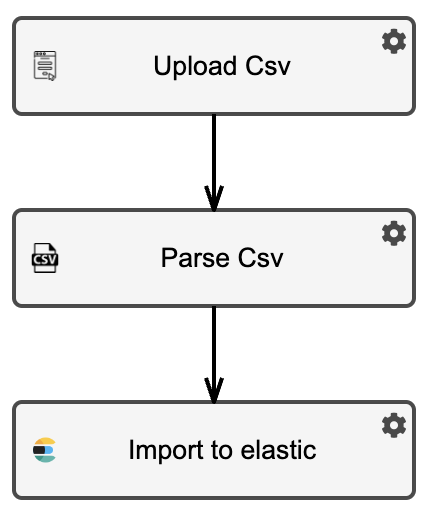
Schema of process with three nodes.
Running a process
When a process is executed all nodes are executed one after another, where each such run is called a process instance. Process instances can be in one of the following state:
COMPLETED : All nodes were successfully completed.
RUNNING : Process instance is still running. Not all nodes are yet executed.
STOPPED : Process instance is stopped. User need to fill in and approve pipeline Forms .
ERROR : Of of the nodes was not successfully executed.
Each process instance has its own unique id, username, timestamp and some additional metadata and statistics about the data that went through the process. When an instance is started an empty process context is created. This is a placeholder for any results that different nodes return or use. It mostly consists of a set of tables and a key value store (dictionary or json)
Process Dashboard
If you have process dashboard enabled, then it will be the first thing you see when opening a process. Process dashboard contains lots of important information like:
Basic process settings like name, groups, ..
A history of process instances, with their metadata.
Statistics about process executions
Process graph schema
Inside process dashboard you can run new process instance, check previous instances or modify process itself. I gives a quick overview on the status of the process and offers relevant information to users.
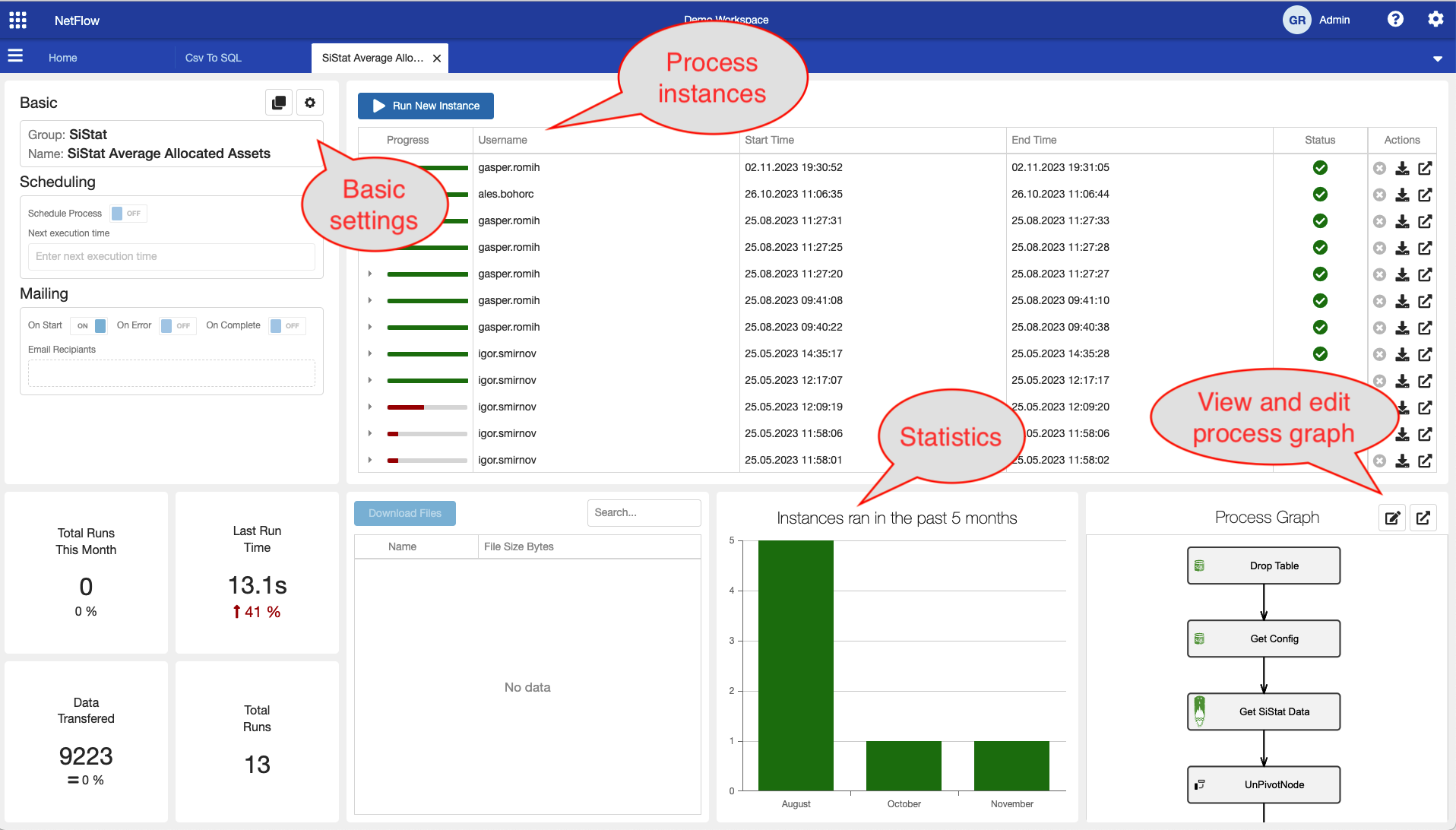
Process dashboard.
Manual execution
Click on a process name in navigation menu or home page a new process tab with process dashboard will open. You can start a new execution by clicking Run New Instance button. This will start a new process instance. To observe additional details of the newly created instance, you can click on open icon in the process instances table under Actions column. This will open a detailed view of the instance.

Note that the availability of such actions may be reduced for some roles inside application.
Debug execution
Follow the instruction in Modify a process to open a process in Designer mode. This mode allows to edit the process but it also allow to run the process in debug mode. In debug mode, the process is executed node by node, where execution is stopped after each node. The result of node outputs is displayed in the environment pane on the right hand side.
To read more details about this mode check Modify a process guide.
Automatic execution
Each process can be configured to be executed on some recurring basis.
Currently you can:
schedule using cron expressions
execute N times
execute until error
combination of above
In the user interface open Settings in process tab. Configure the recurring settings and turn on process scheduling. Save the settings. Process will then be executed on the entered intervals with the System username.
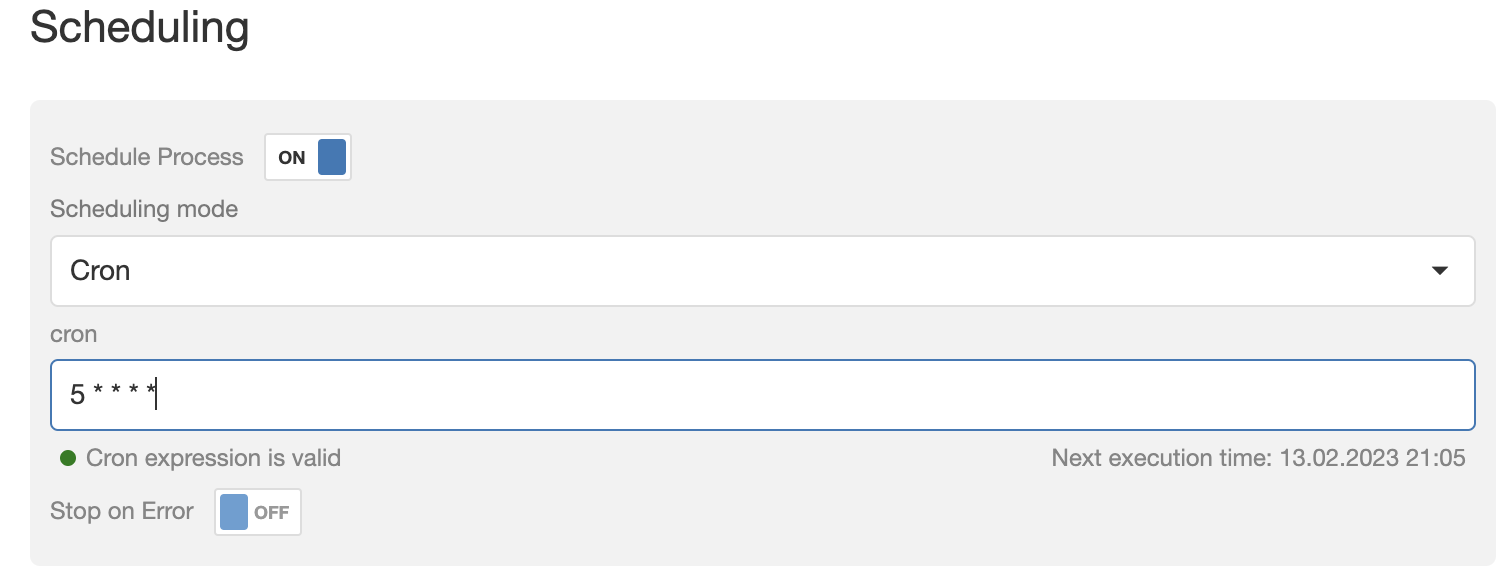
Process scheduling configuration.