
Modify a process
Introduction
Once a process is created it can easily be modified. This will usually happen when constructing process from scratch or upgrading existing process. Modifying a process includes:
adding new nodes
updating configuration of existing nodes
removing nodes
Open process designer
To modify a process first open process dashboard (or process instance page) as described in Processes. Then, to modify a process you need to open the process designer.
To open a process designer from process dashboard click on  icon in Process Graph section.
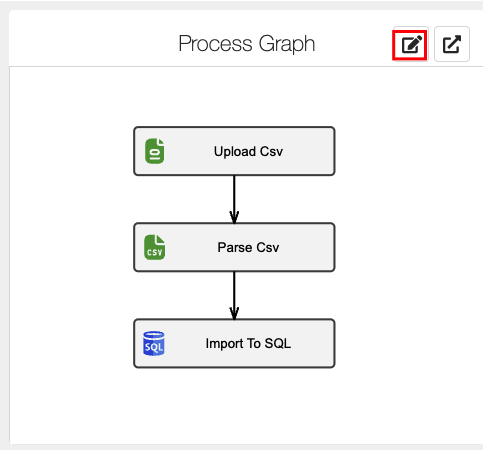
Opening process designer from process dashboard.
If you have Process dashboard disabled you can click on  button in the process instance page.
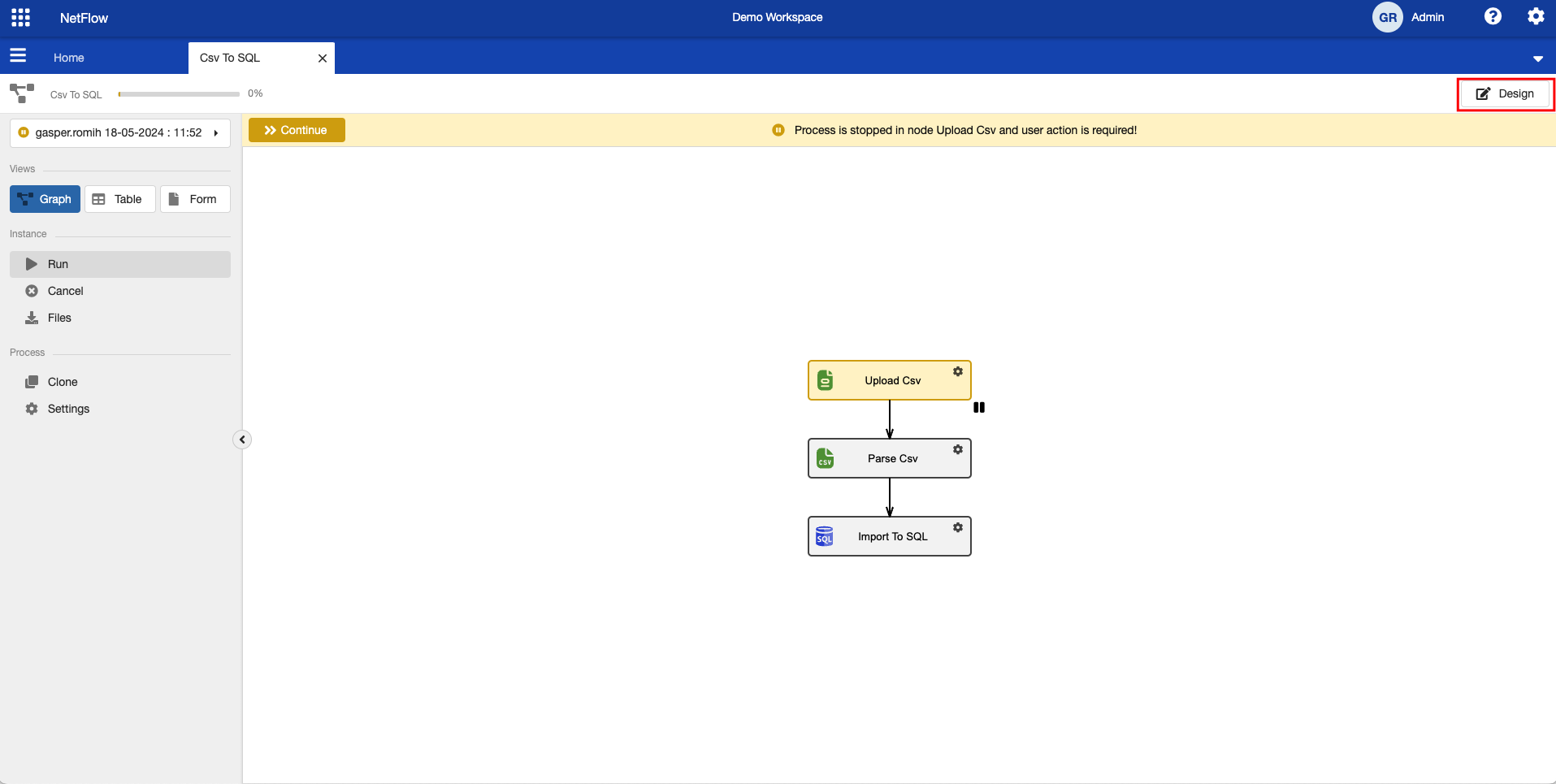
Opening process designer from process instance.
In both cases the process designer page should open up. Note that this is the same page as in Create new process, when a new process is created, except that in this case, the process pane will not be empty.

Process designer option is not necessary available to all the roles. If you don’t see the buttons to open a process designer, this means that you do not have permission for it.
Adding new nodes
To add a new node select node type from left hand side menu and drag & drop it into process pane. Connect it to the existing nodes and click diskette icon  in the toolbar to save it.
You should see  notification at the bottom of the page, indicating that the process was saved.
Configuring nodes
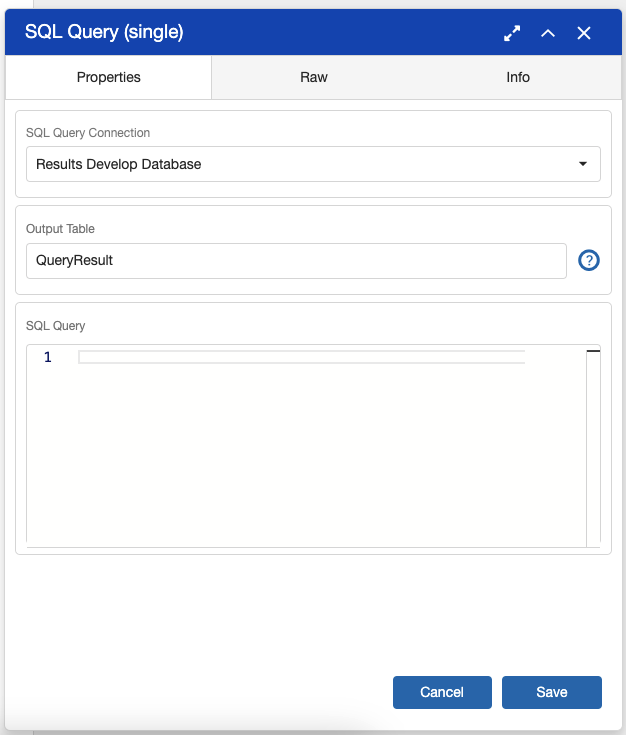
Node settings pop up
To configure a node click on settings icon  in the node box, or right click on node and choose settings. A node setting pop up will open up.
Each node settings pop up consists of multiple tabs:
Properties, where all node properties are displayed in form view. Some properties will have
 icon near them, which contains additional description of a property.
Raw, where all node properties are displayed in raw(json) view. This can be used to easily copy complex node configurations between different processes.
Script (optional), where script is defined. This is only available in the so called “scripting” nodes such as python or sql script nodes.
Info, where ID, Name and Type of the node is displayed. Here you can click
 icon to change node name.
After all of the node settings are configured click on the Save button on the pop up. This will save node settings locally. In order to apply this saved settings to the process you need to click the diskette  icon in the process toolbar.
You should see notification at the bottom of the page, indicating that the process was saved.
You can open multiple node settings at the same time. All node settings pop up windows can be maximized in order to see as much content as possible (which is useful when editing scripts), or they can be manually resized to match desired size.
It is recommended that you save node configuration as often as possible. In order to minimize the possibility of corrupting existing process the changes are not automatically saved.