
Create new process
Create new process
To create a new process open navigation menu and click + New Process button. A new pop-up window opens, where you can choose between preset templates and also a completely empty process that you create yourself from start to finish.
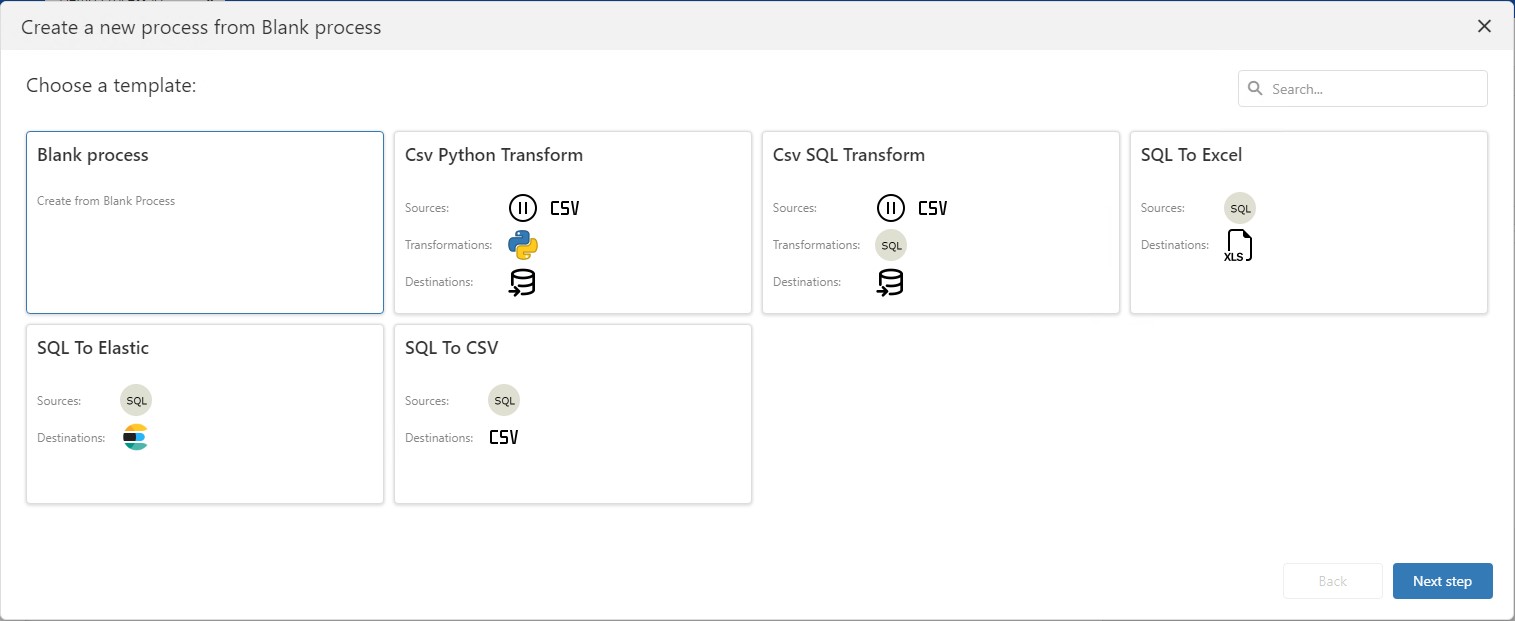
New process type selection.
Create new Blank Process
Choose Blank process and click next step. A new tab with an empty process designer pane will open.
The process designer contains:
Process pane where you create process diagrams.
Node selection box where all node types are listed.
Menu bar with action buttons to debug, continue, cancel and save changes.
Process environment where detailed information about the process data is displayed.
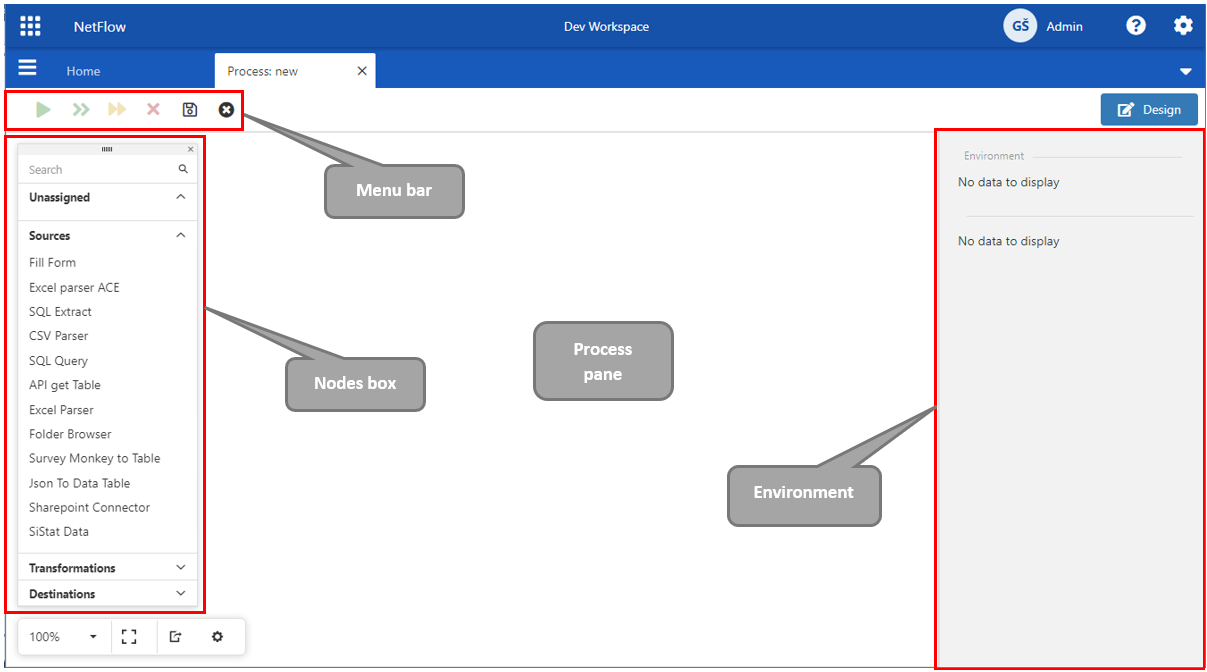
Schema of process designer.
To save a process at least one node must be added to the newly created process. Select one node from Nodes box and drag & drop it into Process pane.
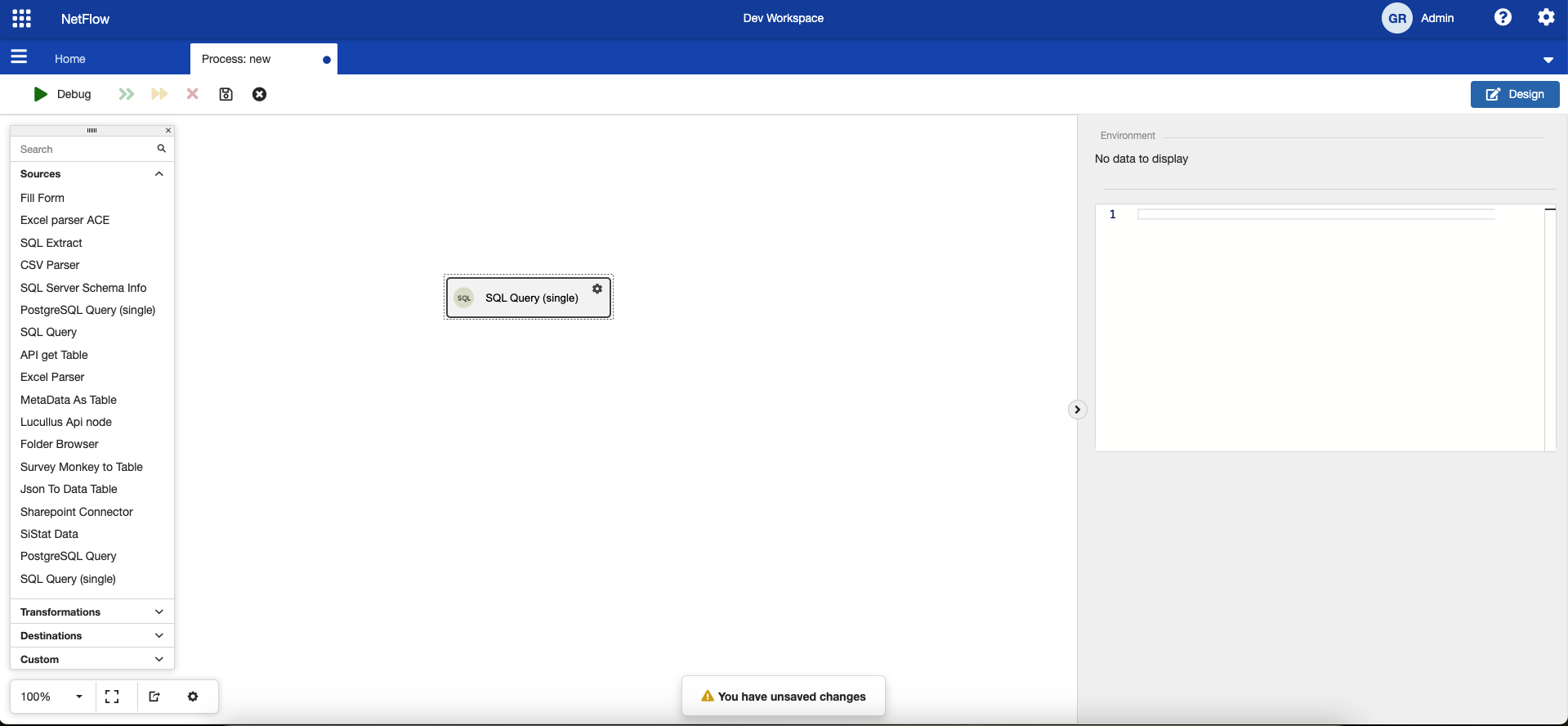
Adding first node into process pane.

When making a change to the process (adding new nodes or changing existing nodes), you will have a warning that you have unsaved changes. If you will try to close the process tab or exit design mode, application will warn you about unsaved changes. If you reload the page or exit the application the changes will be lost!
To Save changes click on the diskette  button on the Menu bar
  .
.
When saving for the first time a pop up will show up, where you must enter Process Name and Group in which to store the process.
Then click Save and new process will be created. You can then add new nodes and/or modify existing ones.
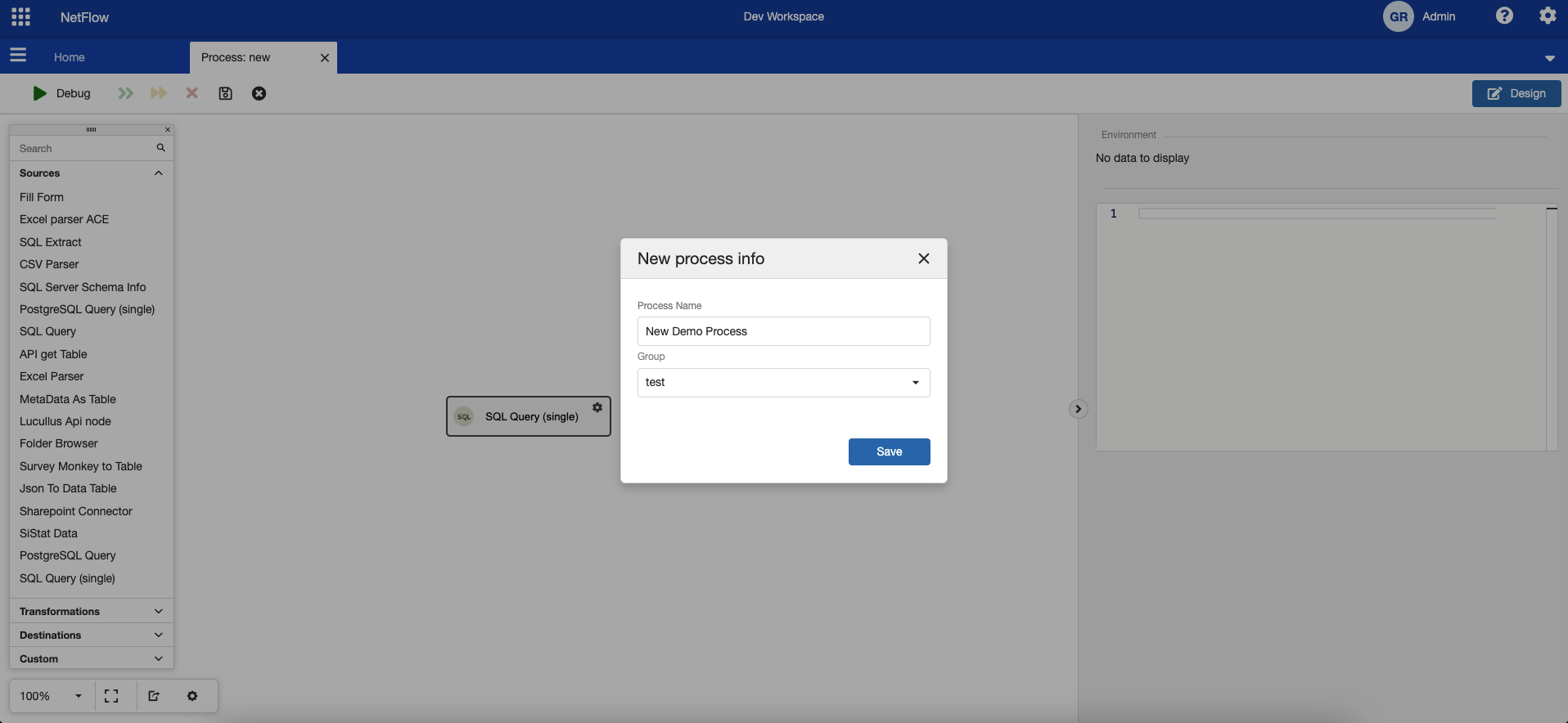
Saving the process for the first time.

You can use different methods of running newly created process. Read Processes to get more information.
Create from Template
To create a process from Template choose appropriate process template and click Next step. A new page will be opened where you need to specify:
Process Name
Group
Set template properties.
Template properties depends on a selected process template itself. Idea is that process template is already configured but needs some additional inputs (etc. where to read and store the data). When you are done click Review and then Save. New (cloned) process will be created where specific properties will be overridden from the template configuration. If everything go as planned, created process can be directly executed.
Different Workspaces can have different template processes. Regular processes can easily be converted to templates by simply moving them into Templates group. In process settings the template or overridden properties can be configured.
Tips for working with template processes
Template processes are most useful where a number of similar processes are needed but each one of them have a slightly different configuration of some node. This could be for example the source or destination database, folder structure and similar.
Sometimes template processes are useful when a complex process needs to be implemented but you don't want to start from beginning.