
Export data from postgres to Excel
What will you learn
Create new NetFlow process from the template
Run created process and download created excel file

After reading this example you should be familiar with creating new process from template and downloading the files that are created during the execution of NetFlow processes.
Prerequisites
Basic understanding of NetFlow processes module. If you are not familiar with this read Processes and Create new process pages.
Basic understanding of Postgres (or SQL) query language.
Introduction
Inside an organization, there are often many databases that hold important information. In many scenarios it is very hard for regular users to access that data. With NetiLab it is eaasy for users with knowledge of postgres database to create a process that would extract the data from postgres database and create an excel files which can be downloaded. Using this process even regular users can run it (without knowledge of postgres) and still get resulting excel file. This can be used for example to create daily reports using postgres query and then saving result to excel file. This can can them be used by different users as they would like.
Example description
Our goal will be to create an excel file that will contain a part of airline customer dataset that was used in Publish a flat file into Postgres Database. It is recommended that you go quickly over this example. We will first filter the results to only consider Eco travel class and then group results to see how many customers was satisfied.
Steps
Step 1 - Creating import process from template
Go to NetFlow module and open navigation menu by clicking  icon. Then click on
  button. A pop up window with process templates should open up.
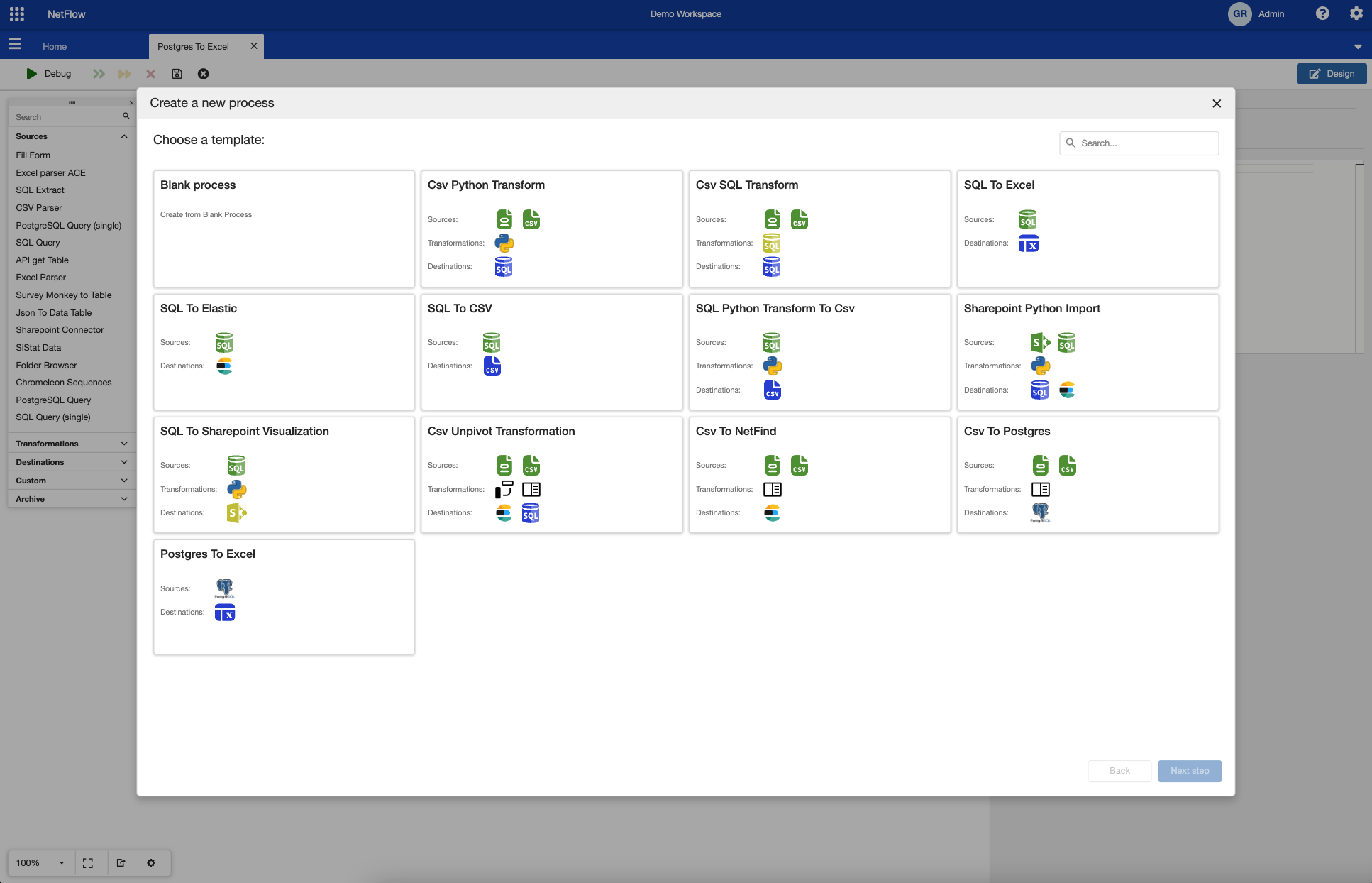
Process template selection
Select Postgres To Excel template and click on Next Step button. In the next step you need to fill in process name and select process group. Also some template configurations needs to be set up. Since this is very easy process template there are only three configuration items that needs to be selected. This are:
SQL Query Connection, which is a Workspace data connection to postgres database
SQL Query, which is a query that will be executed
File Name, which is the name of the excel file that will be generated
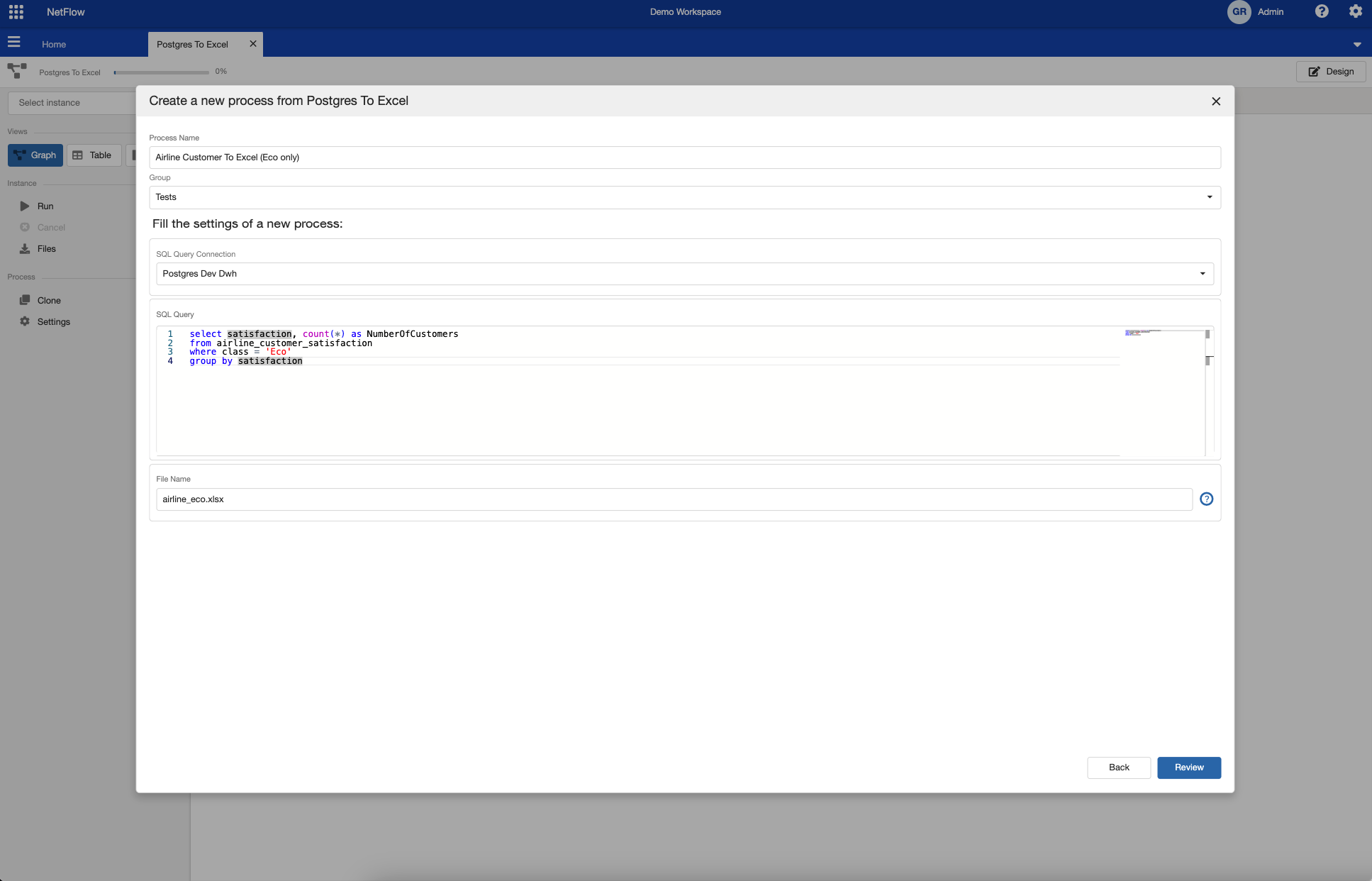
Process template settings
Then click on Review button and review selected configuration. Afterwards click on Save button. This will create a new process and you should be redirected to the newly created process page (either process dashboard or instance page).

It is possible that this template does not exists in your workspace. If this is the case, and you would like to use this template please contact the support team.
Also note that the query and file name can easily be changed latter on. This is just a quick way to create a process that executes some query and saves it as an excel file.
Step 2 - Running created process
If everything was set up correctly you are ready to run the process. To do so click on Run new instance button and new process instance will be started. Since no user interaction is required the process should also successfully finish.
At this point the excel file is generated and can be downloaded. To do so click on the  button in the instance menu on the left hand side and file download dialog should open up. Note that if you have process dashboard enabled and you are not in instance view, then you need to click on the
  icon in the Action column of the newly created instance.
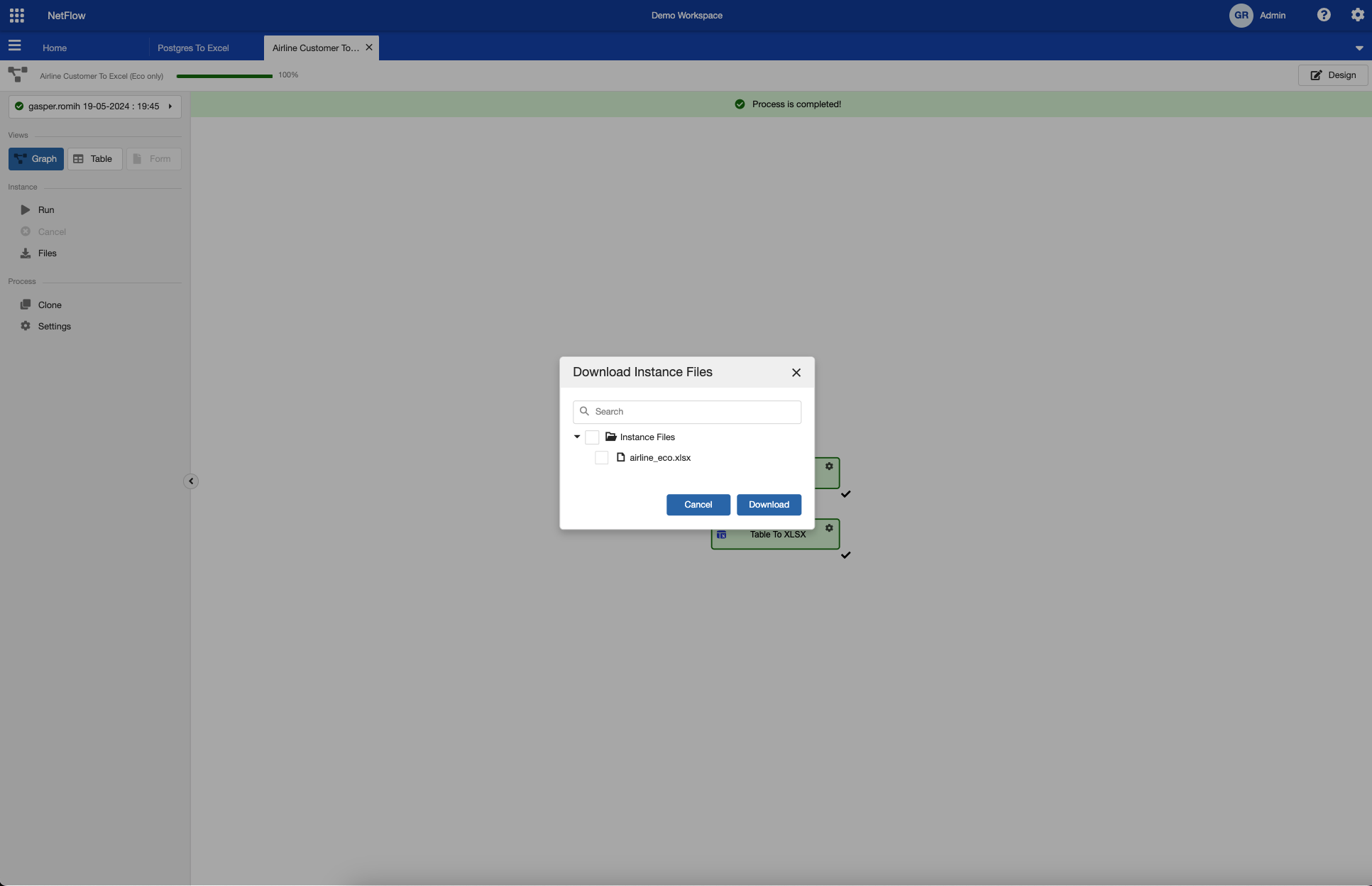
Download instance files pop up.
Check the airline_eco.xlsx file and click on download. The file should be downloaded and you can open it up to check the results.
In a similar way you can download files from other process that creates files. This can be either csv or excel files created from some table in process, or more complicated files that are generated by a python script inside the process.
Note also that it was very easy to run the process. Ignoring the first step, when a postgres query needed to be defined, the entire process is very easy to execute and understand.